Adding Registers
- Will Hales

- Oct 11, 2024
- 2 min read
Updated: Oct 28, 2024
Registers refer to the children who attend your nursery, and their data is integral to the scheduling process. The privacy of our customers, your team members, and your children are of the utmost importance to us, so personal details are kept to an absolute minimum. pip will only ask for the essential information needed to enable the app to function effectively and provide an accurate rota.
The scheduler will match Employee requirements alongside Register requirements to find the best rota while maintaining the lowest EYFS requirements. Adding a Register follows the same process as adding an Employee.
First, navigate to the Registers tab - this page will be blank initially, but will later display a full list of Registers once they have all been added. You’ll notice the familiar + button in the bottom right. Tap this to add a new Register.
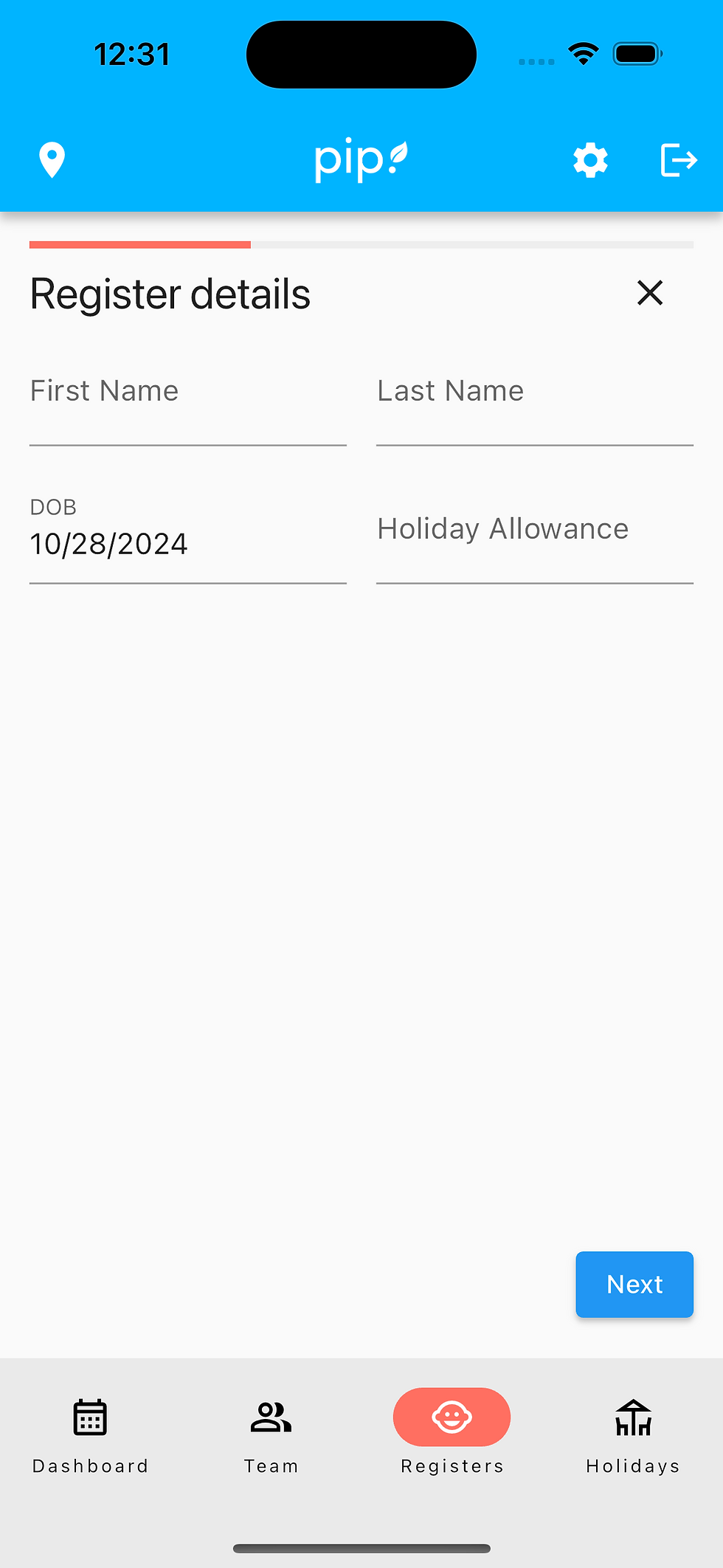
First you’ll need to enter the Registers details. Their Date of Birth will be used to calculate the EYFS requirements per shift. The Holiday Allowance will be used to ensure they’re unable to book more holidays than agreed.
On the next page, you’ll see the Register Bookings screen which is used to determine when the Registers have booked to attend your nursery and allows the system to calculate the rota.

Finally, on the last page, you’ll see the scheduling options. This allows you to state when the register should be scheduled from and an optional date for their last attendance.

After creating a Register, you can edit any of their information by clicking the three dots and then ‘Edit’. This can be used to change their bookings or remove them from the rota.

After adding your Registers, you can return to the Dashboard to see them now in the rota on the days and shifts selected.
